The steps are the same whether the tablet came sealed from Apple or arrived refurbished. One number is worth knowing before you start on a second-hand unit: RefurbMe's tracking puts the median Time-to-Refurb for the iPad line at 94 days, the typical lag between Apple announcing a model and the first refurbished units reaching the market. Apple keeps a given iPad on sale for a median of 399 days (both as of October 2026). Source: RefurbMe iPad stats.
Understanding iPadOS
The iPad's performance and versatility are largely shaped by its operating system, iPadOS. Though it shares foundational code with iOS (the system powering iPhones), iPadOS is specifically tuned for a larger screen and stylus input. Key capabilities include:
- Windowed multitasking: since iPadOS 26, the iPad lets you open, resize, and overlap multiple app windows much like a Mac, complete with traffic-light window controls and an Exposé view of everything you have open. This replaces the older Split View and Slide Over, while Stage Manager remains available.
- Menu bar: Apps now show a Mac-style menu bar that you reveal by swiping down from the top, giving you faster access to commands.
- Apple Pencil integration: Compatible iPads offer full support for the Apple Pencil, enabling precise drawing, annotation, and handwriting.
- Upgraded Files app: A desktop-class file manager with a resizable list view, collapsible folders, custom folder colors, and the option to set default apps for specific file types.
- Desktop-class browsing: Safari renders full desktop websites rather than mobile-optimized versions.
- External storage and display support: Connect USB drives, SD cards, and external SSDs via USB-C, and extend your workspace to an external monitor.
- Customizable Home and Lock screens: Widgets give you at-a-glance information from your most-used apps.
- Apple Intelligence: On supported models, Apple Intelligence brings AI writing tools, Image Playground, Genmoji, Live Translation in Messages and FaceTime, and a more capable Siri.
The current version is iPadOS 27, released on 14 September 2026 and led by a rebuilt Siri; its iPadOS page carries the feature list and the supported models. Apple now numbers its software by the upcoming year, so iPadOS 27 follows iPadOS 26, which followed iPadOS 18. One major version lands each year, with smaller point releases for security patches and bug fixes in between.
Apple Intelligence is the one headline feature that hardware, not software, decides. Apple lists it for iPad Pro with M1 and later, iPad Air with M1 and later, and the iPad mini with A17 Pro. Older iPads on the list still get iPadOS 27; they just do not get the AI features.
👉 Learn more: How Long Do iPads Last?

Which iPads run iPadOS 27?
iPadOS 27 supports the iPad Pro 12.9-inch from the 4th generation, the iPad Pro 11-inch from the 2nd generation, the iPad Air from the 4th generation, the iPad from the 9th generation, and the iPad mini from the 6th generation. That is one generation later than iPadOS 26 on every line: the 2018 iPad Pros, iPad Air 3, iPad 8 and iPad mini 5 stay on iPadOS 26.
| iPad line |
Oldest supported model |
| iPad Pro 12.9-inch |
4th generation (2020) |
| iPad Pro 11-inch |
2nd generation (2020) |
| iPad Air |
4th generation |
| iPad |
9th generation |
| iPad mini |
6th generation |
Two things trip people up here. The two iPad Pro sizes are numbered separately, so the 11-inch that shipped alongside the 12.9-inch (4th generation) in 2020 is the 11-inch 2nd generation, not a 4th. And support for a version of iPadOS is not the same as support for Apple Intelligence: an iPad Air (4th generation) runs iPadOS 27 perfectly well and will never see the AI tools.
If your iPad is older than the table above, it stops at whichever iPadOS version it last received. It keeps working, but new apps eventually stop supporting it, which is the practical reason most people replace one.
How to turn the iPad on and off
Turning the iPad on
- Locate the power button: Depending on your model, it sits on the top-right edge or the upper-right side.
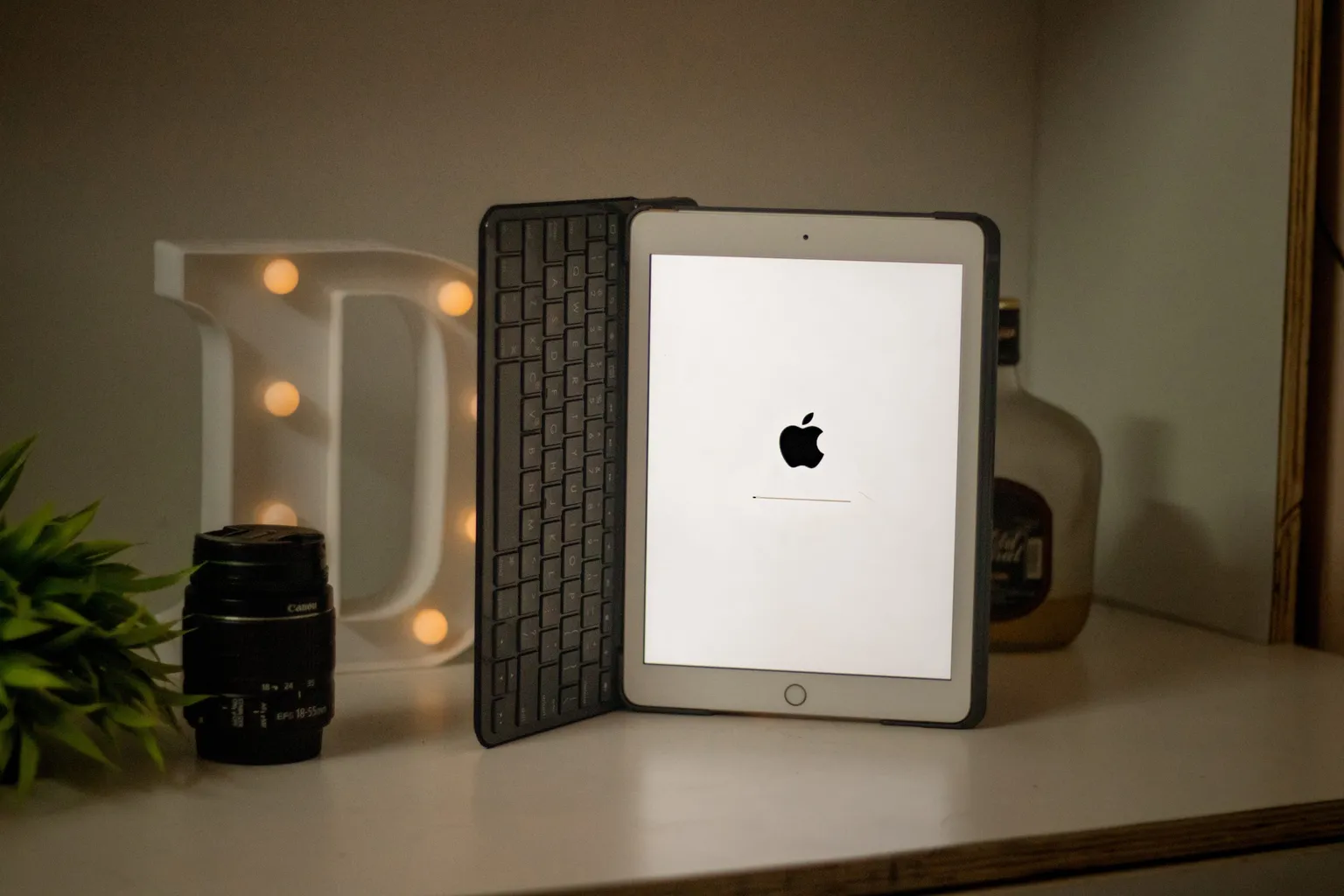
- Press and hold: Keep the button held for a few seconds until the Apple logo appears on screen.
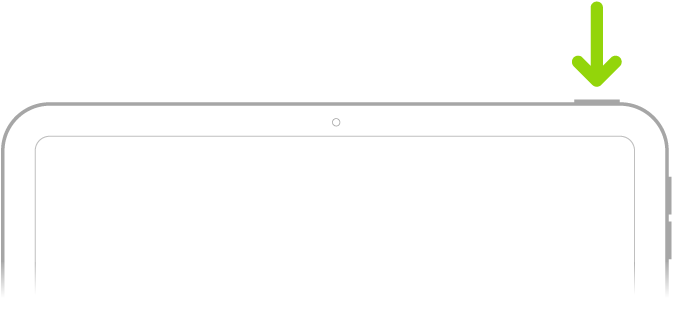
Image credit: Apple
Turning the iPad off
- Locate the power button on the top-right edge or upper-right side.
- Press and hold until the "slide to power off" slider appears on screen.
- Slide to power off: Drag the slider to the right. The screen goes dark once the device is fully off.
On newer Home button-free iPads, press and hold both the power button and a volume button simultaneously to bring up the "slide to power off" slider. The following models use this method:
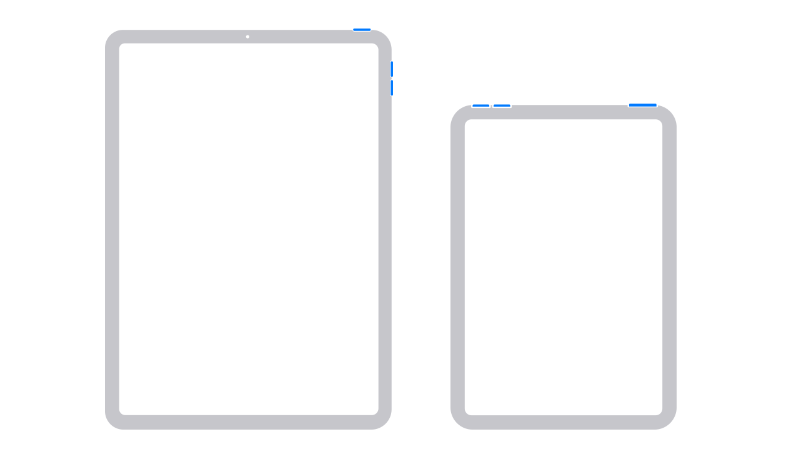
Image credit: Apple
Restarting your iPad periodically is good practice: it clears temporary files and often resolves minor software issues.
👉 Learn more: Every iPad Size Compared: Which Is Best for You?
How to navigate the automatic setup of iPadOS
When you power on a new or freshly reset iPad, you'll be guided through a series of setup screens:
- Turn on the iPad and wait for the "Hello" screen.
- Select your language and region from the provided lists.
- Connect to Wi-Fi by choosing your network and entering the password.
- Set up Face ID or Touch ID using the on-screen prompts for facial or fingerprint recognition.
- Sign in or create an Apple ID to unlock iCloud, the App Store, and other Apple services.
- Set up Siri by speaking the prompted phrases so the assistant learns your voice.
- Review privacy settings including location services permissions.
- Choose your display layout: standard or zoomed.
- Set up Apple Pay by adding a credit or debit card if desired.
- Finalize preferences for analytics sharing, True Tone display, and light or dark mode appearance.
How to charge your iPad
Charging correctly protects your iPad's battery health over time:
- Identify your port: Older iPads use a Lightning connector; newer models (including all iPad Pro and iPad Air from 2018 onward, and iPad mini 6 onward) use USB-C.
- Use an Apple-certified cable that matches your port. Third-party cables that lack MFi certification may charge slowly or unreliably.
- Connect to power:
- Wall outlet: Plug the cable into an Apple adapter and into your iPad, then plug the adapter into the wall. This is the fastest method.
- Computer USB port: Slower than a wall outlet, but works for a top-up charge. The computer must be awake and not in sleep mode.
- Power bank: Any certified USB-C or Lightning power bank will work as a portable option.
Your current battery level appears as a small icon in the top-right corner of the screen. To see an exact percentage, go to Settings > Battery and enable Battery Percentage.
👉 Learn more: How to Save Battery on iPad: 30 Easy Tips
How to create an Apple ID
An Apple ID is your username and password for the entire Apple ecosystem. It grants access to iCloud storage, the App Store, iMessage, FaceTime, and more. The initial iPad setup walks you through creating one, so just follow the on-screen prompts if you don't already have an account.
If you already have an Apple ID from an iPhone or Mac, signing in with the same account on your iPad automatically syncs your contacts, calendars, photos, and purchased apps.
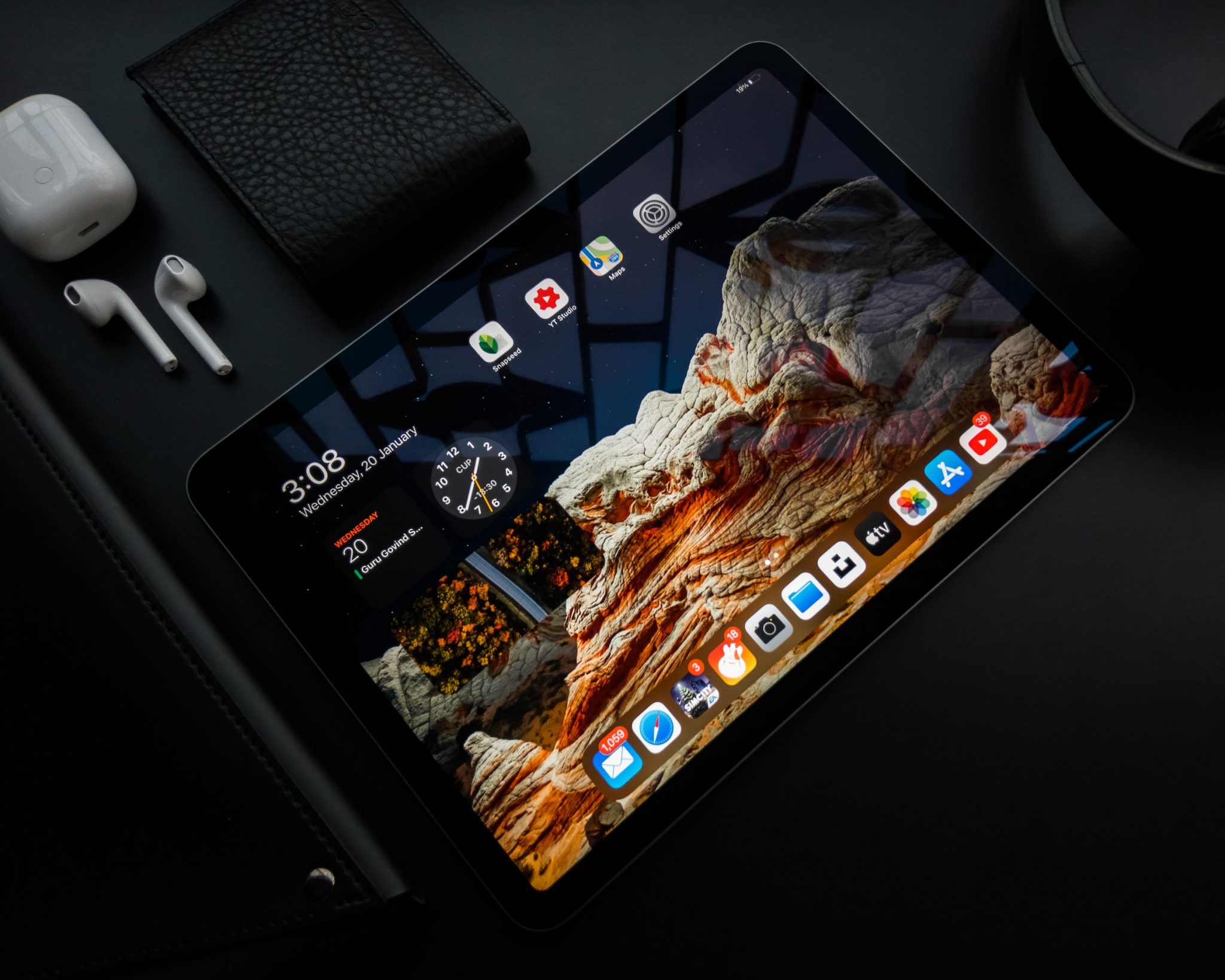
For years, Apple's Home button sat below the display on iPhones and iPads. A single press returned you to the Home screen app grid. A double-press surfaced your recently used apps. A long press activated Siri.
Most current iPad models have replaced the physical Home button with gesture-based navigation and Touch ID built into the power button. But if your iPad has a Home button, these shortcuts still apply, and many users find them faster than relearning gestures from scratch.
How to use Control Center
Control Center is a quick-access panel for the settings you adjust most often: screen brightness, volume, Wi-Fi, Bluetooth, Do Not Disturb, and more.
How to open it:
- iPads with a Home button: Swipe up from the very bottom edge of the screen.
- iPads without a Home button: Swipe down from the top-right corner of the screen.
Once open, you'll find sliders and toggle buttons arranged in a customizable grid. To add or rearrange controls, go to Settings > Control Center and tap the green plus icons next to any controls you want available.
How to use the Settings app
The gear-shaped Settings app is your central hub for personalizing every aspect of your iPad. Key sections include:
- Wi-Fi and Cellular: Connect to networks, manage data, and configure VPN.
- Notifications: Choose which apps can send alerts and how they appear.
- Privacy & Security: Control which apps can access your location, camera, microphone, and contacts.
- General: Handle software updates, storage management, and device resets.
- Display & Brightness: Adjust brightness, text size, True Tone, and Night Shift.
- Battery: View battery health and usage statistics.
- Accessibility: Customize the interface for vision, hearing, or motor preferences.
- Apple Intelligence & Siri: (iPadOS 27 on compatible models) Configure AI writing tools, Image Playground, and Siri's expanded capabilities.
How to turn WiFi on or off
Via the Settings app:
- Open the Settings app (gear icon on your Home screen).
- Tap Wi-Fi near the top of the left-hand list.
- Toggle the switch at the top of the screen: green means Wi-Fi is on, gray means it's off.
Via Control Center:
- Open Control Center (swipe up from the bottom on Home button models; swipe down from the top-right on others).
- Tap the Wi-Fi icon (a dot with curved lines). Blue means connected; gray means off.
How to install an app
- Open the App Store (the blue icon with a white "A" on your Home screen).
- Search: Tap the magnifying glass at the bottom and type the app name or a relevant keyword.
- Select the app from the results to view its description, ratings, and screenshots.
- Tap Get (free apps) or the price (paid apps). Paid apps require a payment method linked to your Apple ID.
- Authenticate: Confirm with Face ID, Touch ID, or your Apple ID password.
- Wait for the download: A circular progress ring appears on the app icon. Once complete, the app is ready to use.
- Open the app from your Home screen.
👉 Learn more: 20 Best Apps for Your iPad
How to update iPadOS
Staying current on iPadOS updates delivers new features, performance improvements, and critical security patches:
- Back up your iPad to iCloud or a Mac/PC before starting any major update.
- Connect to Wi-Fi, as updates cannot download over cellular.
- Plug into power to prevent an interruption if your battery is low.
- Go to Settings > General > Software Update.
- If an update is available, its details will appear. Tap Download and Install.
- Enter your passcode when prompted and confirm.
- Your iPad will restart during installation; keep it plugged in until the process finishes.
- Follow any on-screen prompts after restart to complete the setup of new features.
The version to look for is iPadOS 27, released on 14 September 2026. You can also enable Automatic Updates in Settings > General > Software Update so future updates install overnight.