Widgets can change how you use your Mac. Since macOS Sonoma landed in September 2023, you can place them directly on your desktop, not just in Notification Center, making it easier than ever to keep key information at a glance without opening a single app. macOS 26 Tahoe carries that desktop placement forward unchanged, and the steps below are written against it. Whether you need help staying on schedule, tracking your battery, or simply personalizing your workspace, the right widget setup pays dividends every day. We've rounded up the ten best Mac widgets in 2026, from powerful third-party picks to the underrated built-in tools already on your machine.
Simo Elalj, CEO at RefurbMe Last updated · 10 min reading time
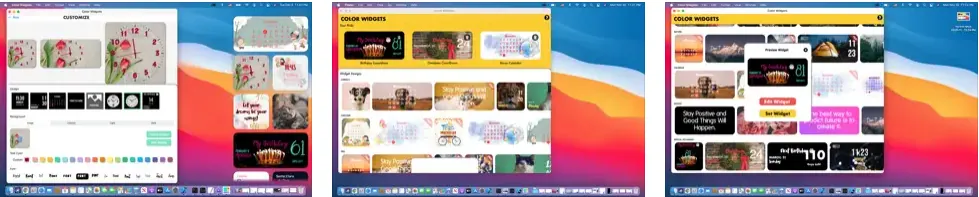
Color Widgets elevates your Mac's aesthetic by offering an expansive library of widgets with the convenience of deep customization. Jumpstart your design by choosing from beautiful pre-made layouts or building something distinctly yours. From methodical tools like calendars, clocks, and battery indicators to personal touches like photo frames and inspiring quotes, Color Widgets enhances both the visual appeal and functionality of your desktop with minimal effort. With the desktop widget support macOS Sonoma introduced, you can pin Color Widgets directly on your wallpaper for an always-visible personal touch.
✨ Top features
Vast selection of predesigned widgets
Extensive customization options
Simple user interface for creating widgets
Functional widgets like calendars, clocks, and batteries
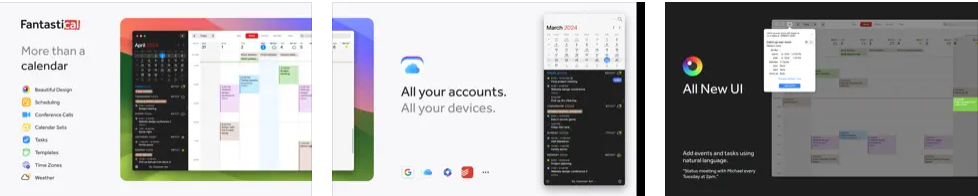
Fantastical is a top-tier calendar app for Mac users who want a more robust and customizable experience than the default Calendar app. Its polished interface and natural language input make scheduling feel effortless, while multiple widget sizes let you surface the right level of detail: your next event or a full 10-day view on your desktop.
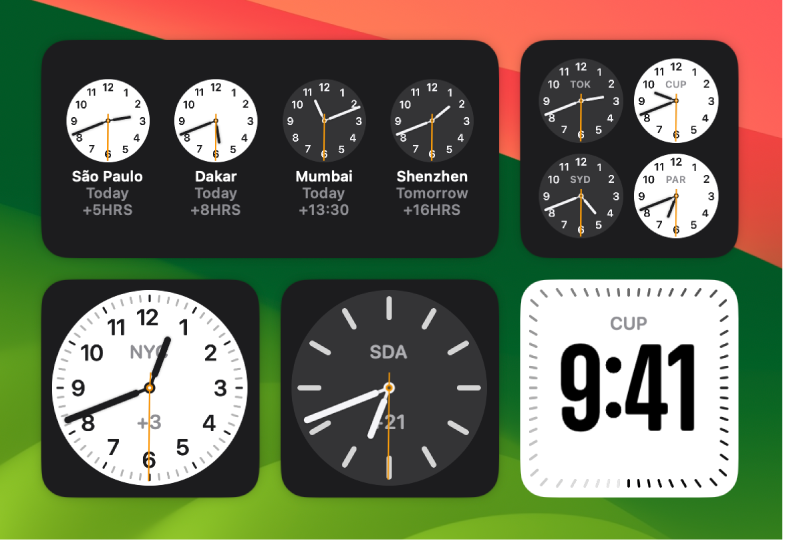
The World Clock widget is a practical tool for anyone managing multiple time zones. Keep track of local time in cities around the globe right from your Mac desktop, whether you're scheduling meetings with international clients or staying in sync with friends and family abroad. It also includes a stopwatch, alarm, and timers that can be accessed with a single click, no app launch required.
✨ Top features
Multiple city time zone tracking
Interactive functionalities such as alarms and timers
Customizable display for preferred cities
Free to use with no additional downloads
💲 Price: Free
⏩ It comes pre-installed
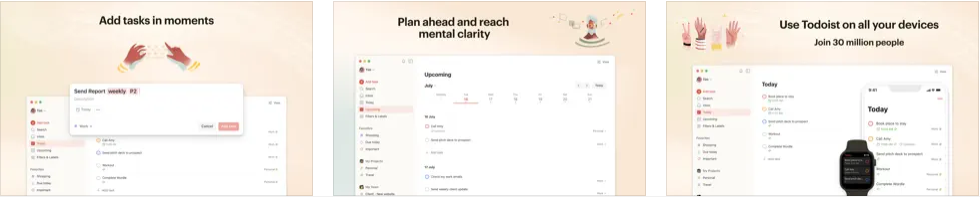
4. Todoist
Todoist stands out for anyone who wants to master task management on their Mac. It is more than just a to-do list. It's a full productivity system designed to organize your work, whether it's daily errands, complex projects, or long-term goals. With its widget, you can monitor your task list directly from the desktop without ever digging through apps. You can also sync Todoist with the powerful all-in-one productivity suite Notion to keep everything connected.
Battery Health is an essential widget for anyone who wants to extend their Mac's battery life over the long term. Rather than relying on the basic battery indicator built into macOS, this app goes deeper, surfacing charge cycle counts, temperature readings, power usage patterns, and historical data that can reveal degradation trends before they become problems. For MacBook users who depend on all-day battery life, it's invaluable.
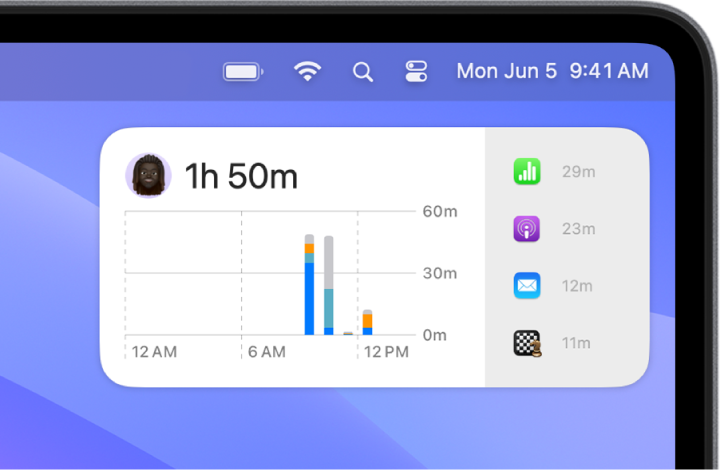
Screen Time is not just a widget but a window into your digital habits. Pre-installed on every Mac, it offers an unobtrusive yet revealing look at where your hours go across all your Apple devices. By surfacing your usage patterns, down to individual apps and categories, it empowers you to make more deliberate decisions about how you spend your time. The widget is available in three sizes, making it easy to integrate into any desktop layout.
✨ Top features
Cross-device time tracking for a holistic view
Detailed app usage statistics
Customizable downtime schedules
Set limits for specific apps or categories
Usage data accessible in three widget sizes
💲 Price: Free
⏩ It comes pre-installed
7. Weather
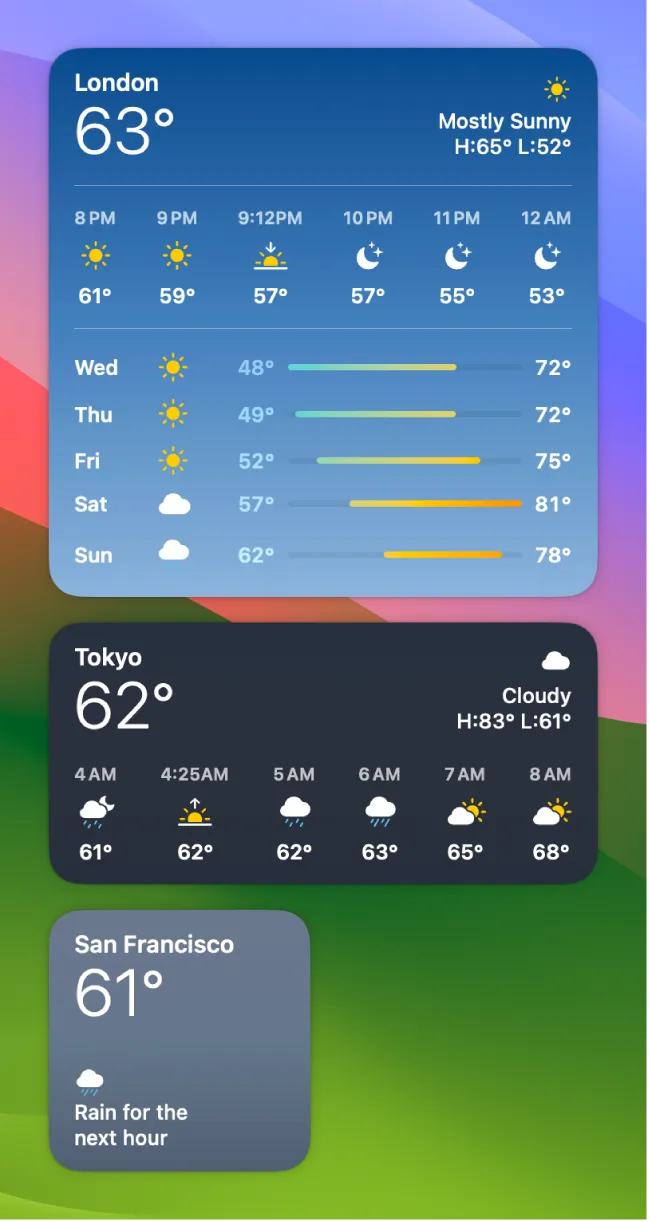
The Weather widget is your on-demand meteorological briefing, delivering up-to-the-minute forecasts without the need to launch an app or open a browser tab. Part of the desktop widget collection macOS Sonoma opened up, it keeps your schedule precise and your wardrobe sensible by surfacing forecasts, air quality data, and moon phases right on your desktop. For anyone who plans their day around the weather (commuters, outdoor workers, travelers), it's one of the most practical built-in widgets available.
✨ Top features
Current temperature and forecast display
Sunrise and sunset timings
Air quality index
Multiple location settings
Lunar panel for moon phase tracking
💲 Price: Free
⏩ It comes pre-installed
8. Widgetter
Widgetter can transform your Mac desktop into a personalized workstation with a comprehensive suite of widgets. This app goes beyond simple aesthetics, providing real-time system data and essential controls in an easily accessible format. Monitor your Mac's performance, track important metrics, and stay organized with customizable widgets that integrate seamlessly into your workflow, whether you pin them on the desktop or tuck them into Notification Center.
✨ Top features
Customizable widgets for date, time, calendar, weather, battery, music, and more
Real-time system data monitoring (CPU, RAM, HDD/SSD, internet speed)
WaterMinder makes it easy to stay hydrated throughout the day, a habit that's easy to overlook when you're deep in work. This intuitive widget tracks your water intake and sends reminders based on your body weight or personal hydration goals. With its clean visual interface and cross-device sync across all your Apple devices, WaterMinder turns a simple health habit into something that actually sticks. The app itself is free to download, and a Premium subscription unlocks the full history, extra cup presets, and the higher tiers.
✨ Top features
Visual representation of your current hydration level
Customizable cups and reminders
History and graph tracking over time
Support for various units (US oz, UK oz, L, and mL)
Syncs data across all your Apple devices
💲 Price: Free | Premium from $2.99/month ($14.99/year, $29.99 lifetime)
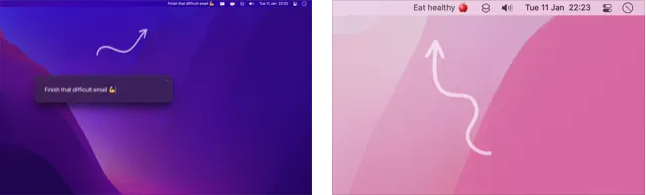
One Thing is a minimalist productivity app built on a single premise: keep your most important task visible at all times. Rather than offering a long to-do list that competes for your attention, it places one item, and only one, in your menu bar as a constant, unobtrusive reminder. For anyone prone to context-switching or losing sight of their top priority, it's a quietly powerful tool.
✨ Top features
Supports Markdown for text styling (bold, italic, strikethrough, links)
Integrates with Shortcuts, share extension, system service, and scripting
Desktop widgets arrived with macOS Sonoma and work the same way in macOS 26 Tahoe, the release Apple shipped on 15 September 2025. The steps below follow Apple's current Mac user guide.
Add widgets to your desktop:
Control-click (right-click) your wallpaper and choose Edit Widgets.
Search the widget gallery for a specific app, or click a category to see its available widgets.
Click a widget to add it automatically, or drag it to a specific spot on your desktop.
Click Done when finished.
Add widgets to Notification Center:
Click the date and time in the menu bar to open Notification Center.
Scroll to the bottom and click Edit Widgets.
Select or drag the widgets you want to add.
Click Done.
Enable iPhone widgets on your Mac:
Go to System Settings > Desktop & Dock > Widgets and turn on Use iPhone widgets. Your iPhone's compatible widgets will then appear in the widget gallery. Apple lists three conditions for this to work: your iPhone runs iOS 17 or later, you are signed in to the same Apple Account on both devices, and your iPhone sits near your Mac or on the same Wi-Fi network.
Conclusion
Mac widgets in 2026 are more flexible than ever. Desktop placement has been part of macOS since Sonoma in 2023 and carries through macOS 26 Tahoe, so there's never been a better time to build a widget setup that genuinely matches the way you work. Whether you want to personalize your desktop with Color Widgets, stay on top of your schedule with Fantastical, manage tasks with Todoist, or simply keep an eye on battery health and hydration, there's a combination that will sharpen your daily routine. Start with the built-in options (Weather, Screen Time, and World Clock are already on your machine), then layer in third-party tools to fill the gaps.
Are you in the market for a new MacBook? RefurbMe is your go-to platform for finding the perfect refurbished MacBook at a discounted price. With a wide selection of models and a user-friendly interface, RefurbMe makes it easy to compare prices and features across multiple sellers, all backed by a warranty for peace of mind.
Timing matters if you want the widgets and the machine. In the US, the median gap between Apple's announcement of a MacBook Air and the first refurbished unit appearing in stock is 94 days, and 101 days for a MacBook Pro, as of October 2026 (RefurbMe Time-to-Refurb data for the MacBook Air and MacBook Pro). Roughly three months after an announcement is when the current generation comes into refurbished reach.
Browse our current Apple silicon MacBook deals below. Every M1 or later model also runs macOS 27 Golden Gate, released on 14 September 2026, while Intel Macs stop at macOS 26 Tahoe.
from $420in Good Refurbished MacBook with Apple Silicon Chip · 262 configurations at 5 sellers. Checked Oct 5, 12:41 PM EDT.
macOS widgets are mini-applications that provide quick access to frequently used information directly from your desktop or Notification Center. They display live data such as weather forecasts, calendar events, battery status, and task lists without requiring you to open a full app. Since macOS Sonoma arrived in September 2023, widgets can also sit permanently on the desktop, and macOS 26 Tahoe works the same way.
Can I customize widgets on my Mac?
Yes. Most widgets can be resized (small, medium, or large) and many offer additional configuration options, such as choosing which calendar to display or which city's weather to show. Right-click any widget and choose Edit Widget to access its settings.
Are there any free widgets that I can add to my MacBook?
Absolutely. Several excellent widgets come pre-installed with macOS, including Weather, Calendar, Battery, World Clock, and Screen Time. Many third-party apps, such as Color Widgets, One Thing, and Fantastical (in its free tier), also offer free widget options from the Mac App Store.
How can I add widgets on my Mac?
On macOS 26 Tahoe, Control-click your desktop wallpaper and select Edit Widgets to add widgets directly to the desktop. To add them to Notification Center, click the date and time in the menu bar, scroll to the bottom, and click Edit Widgets.
How can I remove widgets on my Mac?
Right-click the widget you want to remove and choose Remove Widget. Alternatively, enter Edit Widgets mode, hover over a widget, and click the minus button that appears.
Can I use iPhone widgets on my Mac?
Yes. In macOS 26 Tahoe, go to System Settings > Desktop & Dock > Widgets and enable Use iPhone widgets. Your iPhone needs iOS 17 or later, the same Apple Account as your Mac, and to be near the Mac or on the same Wi-Fi network. Its compatible widgets then appear in the Mac widget gallery.
Last updated: Sep 15, 2026 ·
First published: Dec 20, 2024
Simo Elalj
CEO and Founder at RefurbMe. I made this project back when I was 15 when I had to wake up at 2am to buy my own refurbished Macbook Pro. Passionate about circular economy, great UX and goats.